
Slow Wi-Fi can be frustrating, especially when you are watching videos, attending online meetings, playing games, or downloading large files. Even if you have a good internet plan, your connection may feel slow because of poor router placement, wireless interference, outdated equipment, or too many connected devices.
The good news is that you do not always need to buy a new router or upgrade your internet plan to improve your Wi-Fi speed.
With a few simple changes, you can often improve your connection, reduce buffering, and get more reliable coverage throughout your home.
In this guide, you will learn 12 practical ways to improve Wi-Fi speed at home, how to identify the cause of slow internet, and when upgrading your router might actually be worth it.
Quick Guide: Fix Slow Wi-Fi
Start with these simple fixes before spending money on new equipment.
- Move your router to a central, elevated location.
- Restart your router and modem or ONT if you use one.
- Test your internet speed near the router.
- Use the 5GHz band for nearby devices and 2.4GHz for longer-range coverage.
- Check for interference, outdated firmware, and bandwidth-heavy devices.
1. Place Your Wi-Fi Router in the Right Location
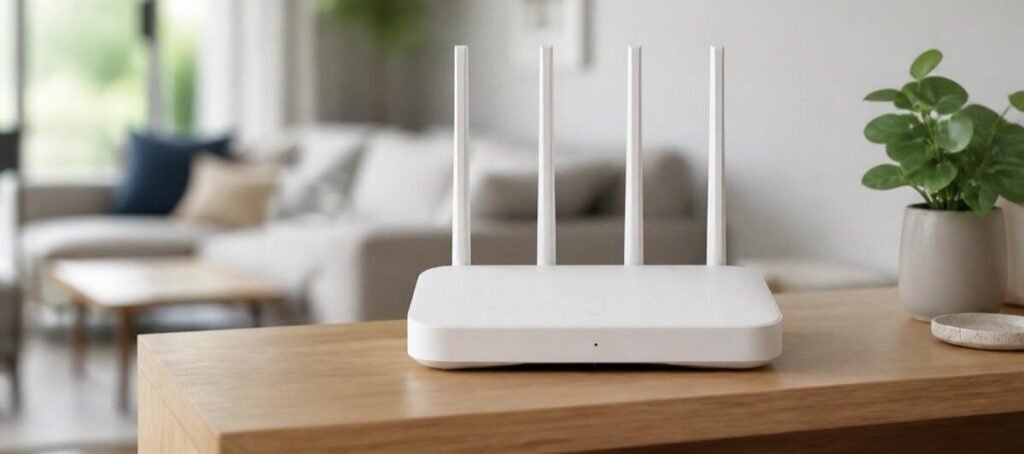
Router placement is one of the easiest things to improve without spending any money.
Wi-Fi signals spread through your home, but walls, metal objects, furniture, and other obstacles can weaken them. If your router is hidden inside a cupboard or placed in a corner, some rooms may receive a much weaker signal.
Where should you place your router?
- Keep it in a central area of your home.
- Place it on a shelf or another elevated surface.
- Keep it away from thick walls and large metal objects.
- Avoid enclosed cabinets and closed drawers.
- Keep it away from appliances that may cause interference.
- Position external antennas according to the router manufacturer’s guidance.
For a multi-floor home, placing the router in a central location with fewer obstacles between floors may help.
Pro tip: If your router is currently hidden behind your television or inside a cabinet, move it into an open area and test the Wi-Fi speed again.
2. Restart Your Router and Modem
Sometimes, a router may experience temporary software issues, connection errors, or performance problems after running continuously for a long time.
Restarting your equipment can help resolve these temporary issues.
How to restart your router properly
- Save any ongoing downloads or work.
- Turn off your router.
- If you have a separate modem or fibre ONT, turn that off as well.
- Wait approximately 30 seconds.
- Turn on the modem or ONT first and allow it to reconnect.
- Turn on the router and wait for the Wi-Fi connection to become stable.
- Run a speed test again.
Restarting will not increase the maximum speed of your internet plan, but it may resolve temporary connection problems.
Important: Do not press the router’s Reset button unless you intend to restore its factory settings. A factory reset can erase your Wi-Fi name, password, and internet configuration.
3. Choose the Right Wi-Fi Band: 2.4GHz vs 5GHz
Many modern routers offer both 2.4GHz and 5GHz Wi-Fi bands. Some newer models also support 6GHz.
Choosing the right band can improve the experience depending on how far you are from the router and what you are doing online.
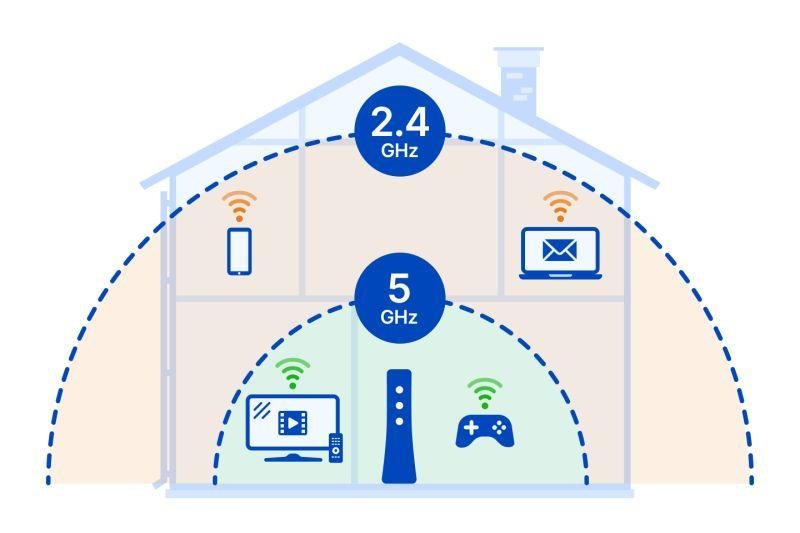
2.4GHz Wi-Fi
Longer range
Better suited to devices that are farther from the router or separated by walls. It is also widely supported by smart-home devices, but it can experience more interference and congestion.
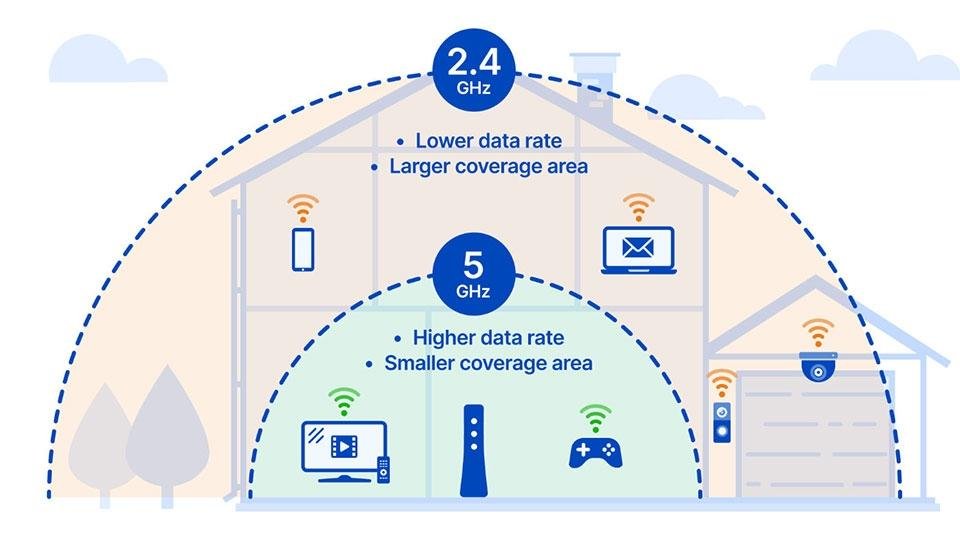
5GHz Wi-Fi
Higher potential speed
Usually a better choice for nearby phones, laptops, 4K streaming, and gaming. Its signal generally does not travel through walls as effectively as 2.4GHz.
Which Wi-Fi band should you use?
| Situation | Recommended Band |
|---|---|
| Device near the router | 5GHz |
| 4K video streaming nearby | 5GHz |
| Online gaming near the router | 5GHz |
| Device in a distant room | 2.4GHz or test both |
| Smart-home device with limited compatibility | Usually 2.4GHz |
| Supported device near a Wi-Fi 6E/7 router | Consider 6GHz if available |
Actual performance depends on your router, device, distance, obstacles, and interference.
If your router uses the same Wi-Fi name for both bands, it may select the band automatically. That is convenient, but you can test separate band names if your router allows it.
4. Change Your Wi-Fi Channel if the Network Is Congested
In apartments and densely populated areas, several nearby routers may compete for the same wireless channels.
This congestion can reduce performance, especially on the 2.4GHz band.
How to improve channel selection
- Open your router’s administration page or app.
- Sign in using your router credentials.
- Find the Wireless or Wi-Fi settings.
- Check whether channel selection is set to Auto.
- If performance remains poor, use a Wi-Fi analyser or the router’s diagnostic tools to identify less congested channels.
- Change the channel if appropriate and test the connection again.
For 2.4GHz Wi-Fi, channels 1, 6, and 11 are commonly recommended in regions where those channels are permitted because they do not overlap with one another when configured with standard 20MHz channel widths.
For 5GHz, the best channel depends on your region, nearby networks, and router support. Some channels may require Dynamic Frequency Selection (DFS), which can affect availability.
Recommendation: Try automatic channel selection first. Manual changes are most useful when you have evidence of congestion rather than simply changing channels at random.
5. Check Your Actual Internet Speed
Before changing router settings, determine whether the problem is caused by your internet connection or your home Wi-Fi.
A speed test can help you identify the difference.
Test Your Internet Speed
Use a trusted speed test service and compare results in different locations.

Speedtest by Ookla
Measure download speed, upload speed, and latency.

Fast.com
Quickly check your download speed.
Pro Tip: Run one test near your router and another in the room where your Wi-Fi is slow. Comparing the results can help you identify whether the problem is weak Wi-Fi coverage or your internet connection.
How to test correctly
- Run a test near your router.
- Run another test in the room where the internet feels slow.
- If possible, connect a computer to the router using Ethernet.
- Repeat the tests at different times.
- Compare the results with your internet plan.
How to understand the results
| Test Result | Possible Cause |
|---|---|
| Ethernet is fast, but Wi-Fi is slow | Wireless interference, signal strength, or router settings |
| Ethernet and Wi-Fi are both slow | ISP issue, modem/ONT, router, or internet plan |
| Speed is good near the router but poor in another room | Weak coverage or physical obstacles |
| Speed drops mainly in the evening | Network congestion or increased household usage |
| Download is fine but video calls lag | High latency, jitter, upload limitations, or packet loss |
This simple comparison can save you from buying a new router when the actual problem is with your internet provider.
6. Reduce Unnecessary Network Traffic
Your Wi-Fi may slow down when several devices use the internet heavily at the same time.
For example, someone might be streaming a 4K video while another person downloads a large game update and someone else attends a video meeting.
What can you do?
- Pause large downloads when you need a stable connection.
- Schedule operating-system and game updates for less busy hours.
- Check which devices are connected to your network.
- Secure your Wi-Fi with a strong password.
- Disconnect devices that you no longer use.
- Use Quality of Service (QoS) settings if your router supports them.
Remember that the number of connected devices is not the only issue. A dozen idle devices may use less bandwidth than one device downloading a huge file.
7. Update Your Router Firmware

Router firmware controls how your device manages wireless connections, security, and networking features.
Manufacturers sometimes release updates to fix bugs, improve stability, address security vulnerabilities, and resolve compatibility problems.
How to update your router
- Identify your router’s exact model and hardware version.
- Open the manufacturer’s official website or router app.
- Check for available firmware updates.
- Follow the manufacturer’s update instructions.
- Avoid unplugging the router during the update.
- Recheck your Wi-Fi connection after the router restarts.
Do not install firmware intended for a different hardware revision or regional model. An incorrect firmware file can make your router unusable.
If your router no longer receives security updates, it may be worth considering a replacement.
8. Use Ethernet for Devices That Need Maximum Stability
Wi-Fi is convenient, but a wired Ethernet connection is often better for devices that need consistent performance.
A wired connection avoids many forms of wireless interference and can reduce latency variation.
Devices that benefit from Ethernet
- Desktop computers
- Gaming consoles
- Smart TVs
- Workstations
- Network storage devices
If your router is far from your device, you can consider a suitable Ethernet cable, access point, or wired mesh backhaul.
For online gaming and work calls, a stable connection can sometimes matter more than a very high headline download speed.
9. Improve Wi-Fi Coverage with a Mesh System or Access Point

If your internet works well near the router but becomes weak in distant rooms, the problem may be coverage rather than your broadband speed.
A Wi-Fi extender, access point, or mesh system can help, but each option works differently.
| Solution | Best For | Main Consideration |
|---|---|---|
| Wi-Fi Extender | Extending coverage into a nearby weak-signal area | Wireless backhaul may reduce throughput |
| Mesh Wi-Fi | Larger homes and multiple coverage zones | Costs more than a basic router |
| Wired Access Point | Extending Wi-Fi using Ethernet | Requires a cable connection |
| Ethernet Connection | A single device needing stable performance | Requires running a cable |
Which option should you choose?
For a small home, changing the router’s location may be enough.
For a larger home, a mesh system can provide more consistent coverage. If you can connect an additional access point using Ethernet, that often provides better performance than placing a wireless extender in an area where the original signal is already very weak.
Important: A mesh system improves coverage, but it does not automatically increase the speed provided by your internet service provider.
10. Secure Your Wi-Fi Network
An unsecured or poorly configured network can allow unwanted devices to connect to your internet.
If other people are using your connection without permission, they may consume bandwidth.
Follow these security practices
- Use a strong, unique Wi-Fi password.
- Enable WPA3-Personal where supported, or WPA2-AES if WPA3 is unavailable.
- Update the router’s firmware.
- Change default administrator credentials.
- Disable WPS if you do not need it and your router’s security guidance recommends doing so.
- Review the list of connected devices.
Avoid using old security protocols such as WEP.
A secure network will not magically increase your broadband speed, but it helps prevent unauthorised access and improves overall network security.
11. Check Your Router’s Age and Capabilities
Sometimes, the router itself becomes the bottleneck.
An older router may struggle with many active devices, newer Wi-Fi standards, or faster broadband plans. However, age alone does not mean a router needs replacement.
When should you consider upgrading?
- Your router frequently disconnects.
- Its Ethernet ports cannot support your required speed.
- It no longer receives security updates.
- Your broadband plan is much faster than the router can realistically deliver.
- You have persistent coverage problems despite sensible placement.
- You need newer features or support for more active devices.
Wi-Fi Standards Compared
| Wi-Fi Standard | Common Name | Key Benefit |
|---|---|---|
| 802.11n | Wi-Fi 4 | Basic wireless connectivity |
| 802.11ac | Wi-Fi 5 | Improved 5GHz performance |
| 802.11ax | Wi-Fi 6 / 6E | Better efficiency in busy networks; 6E adds 6GHz support |
| 802.11be | Wi-Fi 7 | Higher potential throughput and advanced multi-link features |
The Wi-Fi generation is only one part of performance. Your phone or laptop must also support the relevant features, and actual speeds depend on channel width, signal quality, interference, and the internet connection.
If your current router is meeting your needs, you may not need to upgrade simply because a newer Wi-Fi standard exists.
12. Contact Your Internet Service Provider if Nothing Works
If you have tried the steps above and your connection is still slow, the problem may be outside your home network.
Possible causes include:
- Local network outages
- Fibre or cable line problems
- Signal-level issues
- ISP congestion
- Incorrect provisioning
- Faulty modem or ONT
- An issue with your broadband plan
What to tell your ISP
Before contacting support, note down:
- Your subscribed download and upload speeds
- Results from multiple speed tests
- Whether Ethernet is also slow
- The time when the problem occurs
- Any warning lights on your modem or ONT
- Whether the connection drops completely or only slows down
Providing this information can help your provider diagnose the issue more efficiently.
Common Wi-Fi Problems and Their Solutions
Use this table to find a likely solution based on what you are experiencing.
| Problem | First Thing to Try |
|---|---|
| Wi-Fi is slow in every room | Test Ethernet and check your ISP connection |
| Wi-Fi is slow only in one room | Reposition the router or improve coverage |
| Wi-Fi disconnects frequently | Restart equipment and check firmware |
| Videos keep buffering | Check speed, latency, and network congestion |
| Gaming has high ping | Use Ethernet or test a less congested Wi-Fi band |
| Internet is slow at night | Compare speed tests at different times |
| Some devices connect, but others do not | Check device compatibility and router settings |
| Wi-Fi is fast but the internet feels laggy | Check latency, jitter, and packet loss |
Frequently Asked Questions
1. How can I increase Wi-Fi speed without buying a new router?
Start by placing your router in an open, central location, restarting your equipment, choosing the appropriate Wi-Fi band, and checking for interference. Test your speed before and after each change to see what actually helps.
2. Does restarting a router improve internet speed?
Restarting can fix temporary software or connection issues. It will not increase the maximum speed of your broadband plan, but it may restore normal performance if the router is experiencing a problem.
3. Is 2.4GHz or 5GHz better for Wi-Fi speed?
5GHz generally offers higher potential speeds over shorter distances. The 2.4GHz band usually provides better range through obstacles but can be more congested. The best choice depends on your device and location.
4. Why is my Wi-Fi slow even though I have a fast internet plan?
Your router, Wi-Fi interference, distance, device capabilities, network congestion, or ISP issues may limit your actual speed. Compare a wired Ethernet test with a wireless test to narrow down the cause.
5. Does a Wi-Fi extender increase internet speed?
A Wi-Fi extender can improve coverage in a weak-signal area, but it does not increase your ISP’s maximum speed. Wireless extenders may also reduce throughput depending on their design and connection quality.
6. How often should I restart my Wi-Fi router?
There is no universal need to restart a properly functioning router on a fixed schedule. Restart it when troubleshooting connection issues, or follow the manufacturer’s recommendations.
7. Does the number of connected devices affect Wi-Fi speed?
It can. Devices that actively download, stream, upload, or synchronise files share network resources. The effect depends more on their activity and your router’s capabilities than on the number of devices alone.
8. Will a new router make my internet faster?
A new router can improve wireless performance if your current router is a bottleneck. However, it will not overcome the speed limits of your broadband plan or fix an external ISP fault.
Final Verdict
Improving Wi-Fi speed at home does not always require expensive equipment. In many cases, better router placement, the right Wi-Fi band, a quick speed test, and a few carefully chosen settings can make a noticeable difference.
Start with the free fixes first. Check whether the problem affects every device or just one room, compare wired and wireless speeds, and update your router if necessary.
If the problem is weak coverage, consider a mesh system or access point. If both wired and wireless connections are slow, contact your internet provider before spending money on new Wi-Fi equipment.
The key is to identify the real cause of slow Wi-Fi rather than changing random settings or buying hardware you may not need.
Our Recommendation: Start with router placement and speed testing. These two simple steps can help you identify the next best action without unnecessary expense.