
Windows is one of the most widely used operating systems for personal computers, laptops, and business devices. From everyday productivity to professional software and enterprise applications, Windows supports a broad range of computing needs.
However, not every application, driver, or hardware component works with every Windows version. Understanding Windows client operating system compatibility is essential for users, developers, IT administrators, and businesses that want their systems to work reliably.
In this guide, we will explain Windows client OS compatibility, supported Windows versions, software requirements, driver support, common compatibility problems, and practical troubleshooting steps.
What Is a Windows Client Operating System?
A Windows client operating system is a version of Microsoft Windows designed primarily for personal computers and end-user devices, such as desktops, laptops, and workstations.
Common examples include Windows 11 and Windows 10, along with older versions such as Windows 8.1, Windows 8, and Windows 7.
Windows client operating systems provide the environment in which users run applications, connect hardware, access networks, and manage files.
They are different from Windows Server editions, which are designed for server workloads and infrastructure services.
What Does Complete Support for Windows Client OS Mean?
The phrase “complete support for all Windows client OS” generally describes software or hardware that is designed to work across multiple Windows client operating systems.
Depending on the product, support may include:
- Software installation and execution.
- Compatibility with supported Windows editions and versions.
- Hardware driver availability.
- Security updates and bug fixes.
- Technical assistance and troubleshooting.
- Compatibility with system components and third-party applications.
However, complete support does not automatically mean compatibility with every Windows version ever released. The developer or manufacturer must specify which versions are supported, and older operating systems may no longer receive security updates.
For this reason, always check the product’s official compatibility documentation before installing it.
Windows Client Operating Systems and Their Support Status
Different Windows versions have different support lifecycles. A product may still run on an older Windows release even when Microsoft no longer provides regular security updates for that operating system.
| Windows version | General status |
|---|---|
| Windows 11 | Supported releases receive updates according to their servicing lifecycle |
| Windows 10 | Standard support ended on October 14, 2025 |
| Windows 8.1 | Support ended on January 10, 2023 |
| Windows 7 | Support ended on January 14, 2020 |
| Windows 8 | Support ended on January 12, 2016 |
These dates refer to the general Windows release lifecycle; special editions and long-term servicing releases may have different timelines. Microsoft Learn
Microsoft also offers an Extended Security Updates (ESU) programme for eligible Windows 10 devices. Availability and eligibility depend on the applicable programme. Microsoft Support
For the latest details, consult the official Microsoft Windows lifecycle guide.
Why Windows Client OS Compatibility Matters
Compatibility affects more than whether an application opens successfully. It can influence performance, security, reliability, and the ability to use essential features.
1. Software Installation
An application may require a specific Windows version, system architecture, or runtime component. If your computer does not meet these requirements, installation may fail or the application may not function correctly.
Before installing software, check its minimum requirements and supported operating systems.
2. Hardware and Driver Support
Devices such as printers, graphics cards, Wi-Fi adapters, webcams, and scanners depend on compatible drivers.
A driver created for an older Windows version may not work correctly on a newer release. Whenever possible, download drivers from the computer manufacturer or hardware vendor.
3. Security and Reliability
Supported Windows releases receive servicing and security updates according to Microsoft’s lifecycle policies. Unsupported releases can become increasingly risky to use for sensitive activities, particularly when connected to the internet.
4. Business and Enterprise Applications
Businesses often rely on specialised software, internal tools, and older applications. Testing compatibility before upgrading Windows helps reduce downtime and unexpected problems.
Microsoft provides a Windows 11 compatibility guide for developers and organisations validating application behaviour.
How to Check Your Windows Version
Before installing a new application or troubleshooting compatibility problems, identify which Windows version your computer is running.
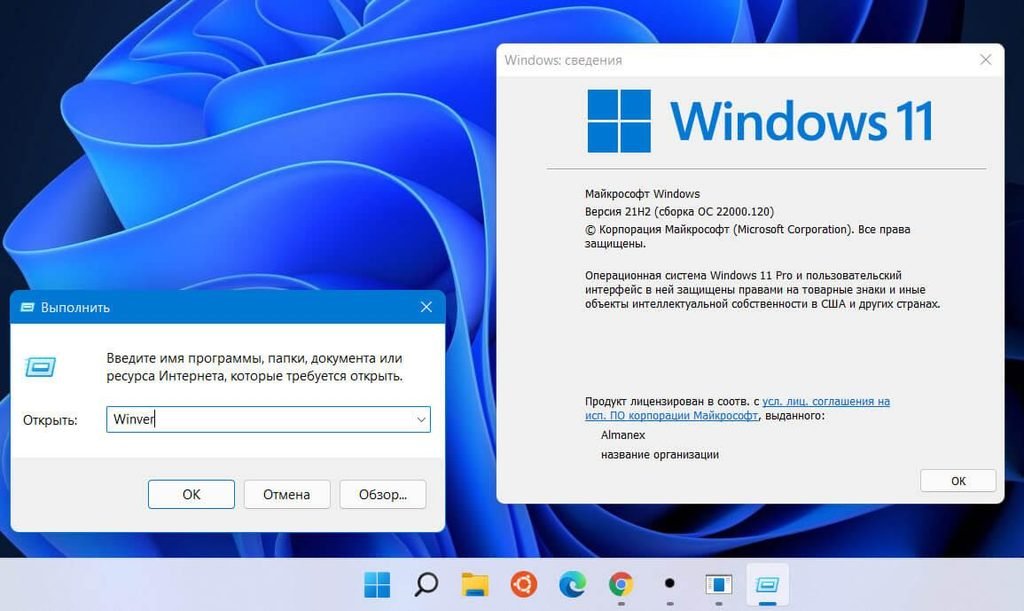
Step 1: Open the Run dialog
Press Windows + R on your keyboard.
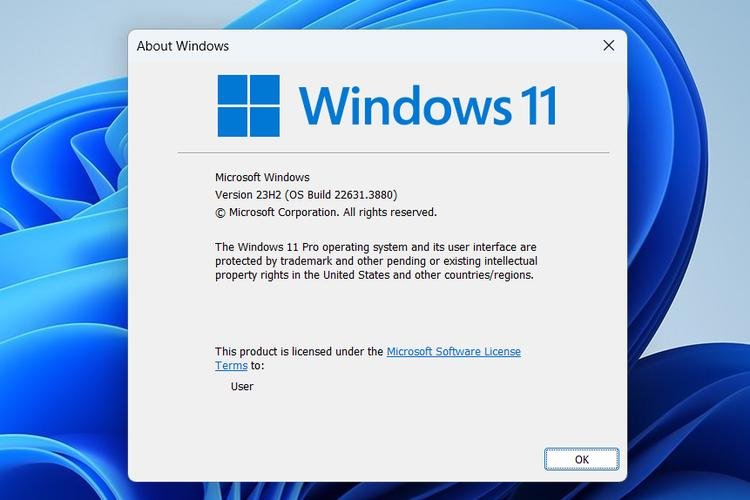
Step 2: Enter winver
Type winver and press Enter. The About Windows window will show your Windows version and OS build.
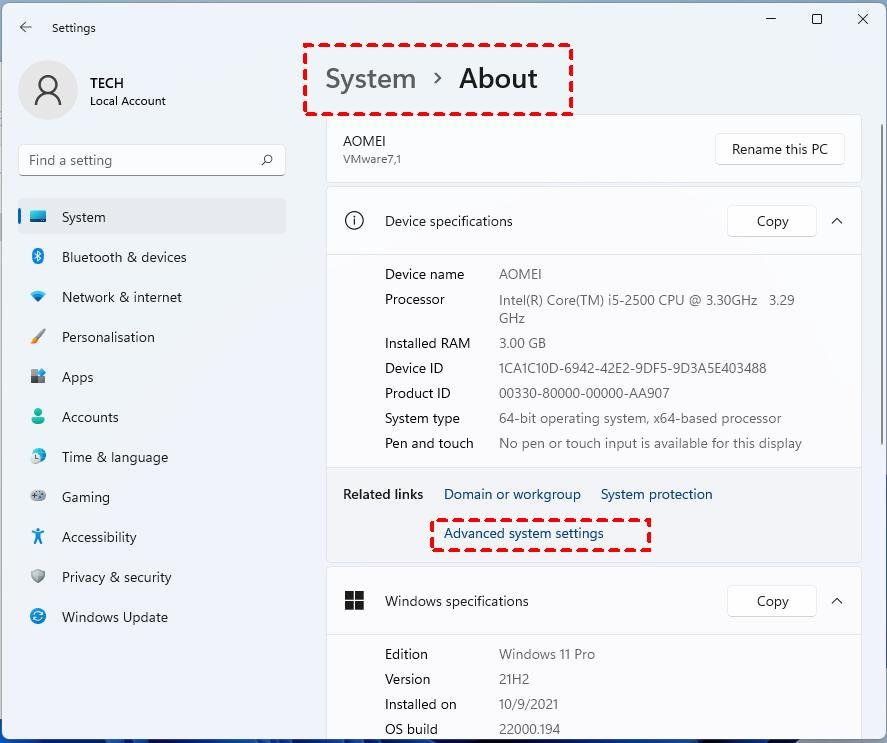
Step 3: Check System information
Open Settings → System → About. Review the Windows edition, version, system type, and other device specifications.
Once you know your version, compare it with the software’s official system requirements.
How to Check Whether Software Supports Your Windows Version
Follow these steps before downloading or purchasing software.
- Visit the official software developer’s website.
- Open the System Requirements, Compatibility, or Supported Platforms page.
- Find your exact Windows version and edition.
- Check whether your computer uses a supported 64-bit or 32-bit architecture, if applicable.
- Review any additional requirements, such as memory, processor, .NET runtime, or other dependencies.
- Check the product’s update policy and support period.
- Download the installer from a trusted source.
If the manufacturer does not list your operating system, contact its support team rather than assuming that the software is compatible.
Common Windows Compatibility Problems and Their Solutions
Software Cannot Be Installed
Possible causes: Unsupported Windows version, missing dependencies, insufficient permissions, or a damaged installer.
What to do: Verify the system requirements, download a fresh installer from the official website, and follow the developer’s installation instructions.
An Application Crashes or Fails to Open
Possible causes: Outdated software, incompatible components, or missing runtime libraries.
What to do: Install available application updates, review the error message, and check the developer’s troubleshooting documentation.
Hardware Is Not Recognised
Possible causes: Missing drivers, faulty connections, or hardware that is no longer supported.
What to do: Check Device Manager, install the correct driver from the hardware manufacturer, and confirm that the device supports your Windows release.
An Older Application Works Incorrectly on Windows 11
Some older desktop applications may need adjustments to work correctly on newer Windows releases.
Try the built-in compatibility troubleshooter, if available, and consult the application’s developer. Compatibility mode may help some older applications, but it cannot guarantee that every program will work.
Windows Is Not Receiving Security Updates
Check your Windows version and its support lifecycle. If your operating system has reached the end of support, investigate an eligible upgrade or applicable extended security programme.
Do not disable security protections or download unofficial system files to bypass compatibility errors.
Best Practices for Maintaining Windows Compatibility
Maintaining compatibility requires regular checks rather than a one-time installation.
- Keep supported Windows versions updated.
- Download drivers and software from trusted sources.
- Test important applications before deploying operating system upgrades.
- Maintain backups before major system changes.
- Document the Windows versions supported by your business software.
- Remove applications that are no longer needed.
- Review vendor security and maintenance policies regularly.
For organisations managing multiple computers, a documented compatibility matrix can help IT teams plan updates and avoid unexpected disruption.
Frequently Asked Questions (FAQs)
What does “all Windows client OS supported” mean?
It usually means that a product has been designed or tested for several Windows desktop operating systems. The exact supported versions should be confirmed in the manufacturer’s documentation.
Does Windows 11 support all older Windows applications?
No. Many older applications work on Windows 11, but compatibility is not guaranteed for every application, driver, or specialised hardware device.
Can I still use Windows 10 after its support ended?
Windows 10 can continue to function, but standard support ended on October 14, 2025. Without applicable extended security updates, it no longer receives regular security fixes from Microsoft. Microsoft Support
How do I check software compatibility before installation?
Review the official system requirements and supported operating systems. Check architecture, dependencies, hardware requirements, and the software’s current support policy.
Can compatibility mode fix older Windows applications?
It can help some applications, but it cannot resolve every compatibility issue. Applications that depend on unsupported drivers, system components, or obsolete services may still fail.
Why are Windows drivers important?
Drivers allow Windows to communicate with hardware devices. Incorrect or outdated drivers can cause connectivity problems, missing features, instability, or device recognition errors.
Final Verdict
Windows client OS compatibility is essential for reliable software installation, hardware operation, security, and long-term system maintenance.
Before choosing software or upgrading a computer, check the supported Windows versions, system requirements, driver availability, and security lifecycle. For businesses, test critical applications before deploying major updates.
The most reliable approach is to use supported operating systems, obtain software from official sources, and follow the compatibility guidance provided by the relevant manufacturer.